MeetCLI User Guide
MeetCLI is a desktop app for managing contacts and lightweight follow-up reminders, optimized for use via a Command Line Interface (CLI) while still having the benefits of a Graphical User Interface (GUI). If you can type fast, MeetCLI can get your contact and follow-up planning done faster than traditional GUI apps.
Target Users: Property agents, sales professionals, and business developers who need to manage large contact lists with company affiliations, tags, and a concise "next meeting" note.
Why a CLI fits these users
Property agents and sales professionals rely on keyboard-driven workflows (rapid entry, batch filtering, repeatable scripts). MeetCLI optimizes for speed and automation, reducing friction during lead capture and follow-ups.
See Developer Guide → Appendix: Requirements → Target user profile for the full user profile and underlying assumptions.
Table of Contents
Quick start
To ensure you have Java
17or above installed in your Computer:Search for Command Prompt in the Start Menu on Windows (if you are using Mac, open terminal by using Spotlight Search (Command + Space bar), then type "Terminal").
Type
java -versionand press Enter. You should see an output similar to below.java version "17.0.16" 2025-07-15 LTS Java(TM) SE Runtime Environment (build 17.0.16+12-LTS-247) Java HotSpot(TM) 64-Bit Server VM (build 17.0.16+12-LTS-247, mixed mode, sharing)Verify that the terminal displays
java version "17"or higherif Java version displayed is not Java
17or higher:
Download the latest
.jarfile from here.Copy the file to the folder you want to use as the home folder for MeetCLI.
Open a command terminal,
cdinto the folder you put the jar file in, and use thejava -jar meetcli.jarcommand to run the application.
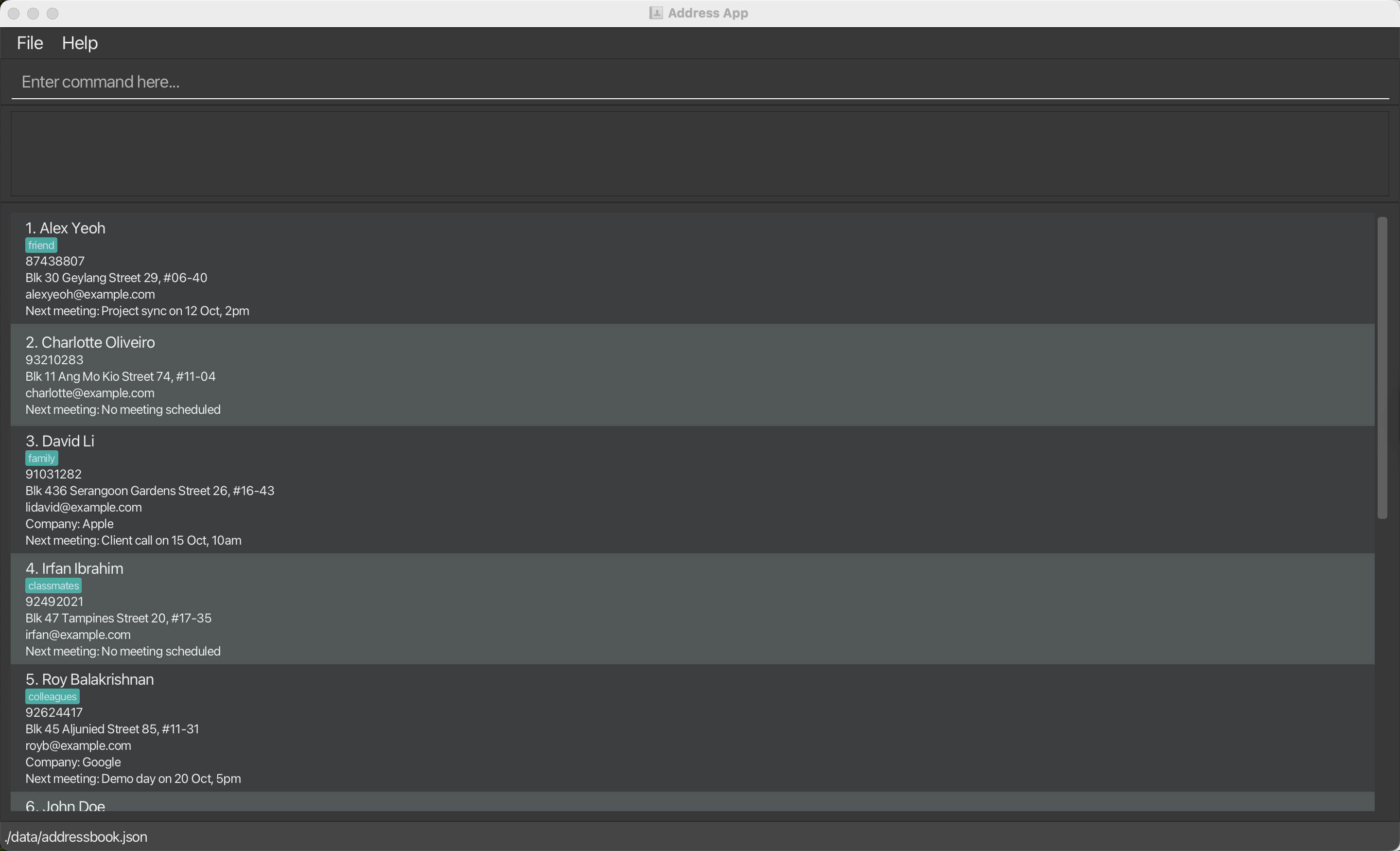
A GUI similar to the below should appear in a few seconds. Note how the app contains some sample data.
Type the command in the command box and press Enter to execute it. e.g. typing
helpand pressing Enter will open the help window.
Some example commands you can try:list: Lists all contacts.add n/John Doe p/98765432 e/johnd@example.com a/John street, block 123, #01-01 c/Google m/Project review next Monday t/client: Adds a contact namedJohn Doewith company, meeting, and tag information.find c/Google: Finds all contacts working at Google.listtag: Shows all allowed tags alphabetically.delete 3: Deletes the 3rd contact shown in the current list.exit: Exits the app.
Refer to the Features below for details of each command.
Features
Key Features Overview
MeetCLI extends traditional address book functionality with powerful features for business contact management:
📊 Company Organization
- Track which company/organization each contact belongs to
- Search and filter by company name
- Useful for managing clients across multiple organizations
🏷️ Tag System
- Categorize contacts with tags (e.g.,
client,vip,prospect) - Tag registry ensures consistency across your database
- Search by single or multiple tags
- View available tags with
listtag
📅 Meeting Reminders
- Record a short "next meeting" note for each contact (e.g., "Demo on Fri 2pm")
- Defaults to
No meeting scheduledwhen omitted - Update or clear the note anytime with the
editcommand
🔍 Advanced Search
- Find by name, tags, company, or any combination
- Flexible AND/OR logic for precise filtering
- Case-insensitive search for user convenience
Notes about the command format:
Words in
UPPER_CASEare the parameters to be supplied by the user.
e.g. inadd n/NAME,NAMEis a parameter which can be used asadd n/John Doe.Items in square brackets are optional.
e.g.,n/NAME [t/TAG]can be used asn/John Doe t/friendor asn/John Doe.Items with
… after them can be used multiple times including zero times.
e.g.,[t/TAG]…can be used as(i.e. 0 times),t/friend,t/friend t/familyetc.Parameters can be in any order.
e.g., if the command specifiesn/NAME p/PHONE_NUMBER,p/PHONE_NUMBER n/NAMEis also acceptable.Extraneous parameters for some commands that do not take in parameters (including
help,list,exitandclear) will be ignored.
e.g., if the command specifieshelp 123, it will be interpreted ashelp.If you are using a PDF version of this document, be careful when copying and pasting commands that span multiple lines as space characters surrounding line-breaks may be omitted when copied over to the application.
Parameter Prefixes:
n/- Namep/- Phone numbere/- Emaila/- Addressc/- Companym/- Meetingt/- Tag
Viewing help : help
Shows a message explaining how to access the help page.

Format: help
Tag system overview
MeetCLI requires tags to be registered before they can be attached to contacts. Use addtag to expand the registry and listtag to review what is currently available.
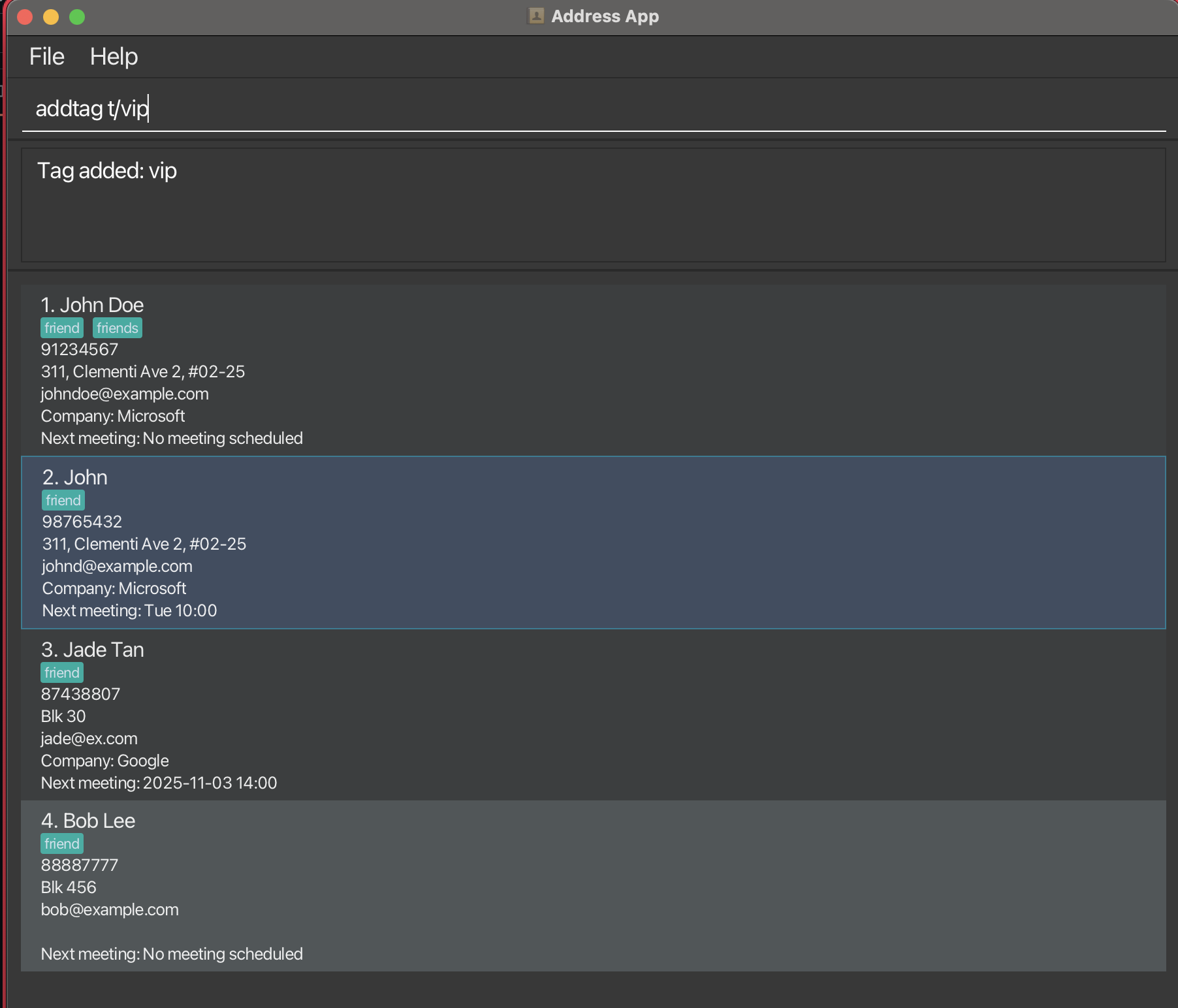
Adding a tag: addtag
Adds a new tag to the allowed tag registry, making it available for use in add and edit commands.
Format: addtag t/TAG_NAME
Notes:
- Tag names must be alphanumeric (no spaces or special characters)
- Tag names are case-insensitive (e.g.,
Friendsandfriendsare the same) - Only tags in the registry can be used when adding/editing contacts
- Default tags:
friend,family,colleague,classmate,client
Examples:
addtag t/vip- Adds a "vip" tag to the registryaddtag t/prospect- Adds a "prospect" tag for potential clients
Common Errors:
addtag t/important client- ❌ Tags cannot contain spacesaddtag t/vip!- ❌ Tags cannot contain special charactersaddtag t/vip(when vip already exists) - Shows "This tag already exists" message
Listing all tags: listtag
Lists all tags currently registered for use, sorted alphabetically (case-insensitive).
Format: listtag
Features:
- Alphabetically sorted (case-insensitive)
- Shows the exact registry view used by
addandedit - Helpful for checking which tags you can apply or filter by
Example output:
Tags: client, colleague, family, friend, vip
- The tag registry is a runtime convenience for validation.
- On startup, the registry is rebuilt from the tags found in saved contacts.
- Tags added with
addtagbut not assigned to any contact are not persisted and therefore won’t appear after restarting the app.
Tip: Use listtag before using find t/TAG to see which tags are available for filtering!
Note: If the registry is empty, displays There are currently no tags.
Adding a person: add
If you plan to use tags, read the Tag system overview first.
Adds a person to the address book with optional company, meeting, and tag information.
Format: add n/NAME p/PHONE_NUMBER e/EMAIL a/ADDRESS [c/COMPANY] [m/NEXT_MEETING] [t/TAG]…
Required Fields:
n/NAME- Person's full namep/PHONE_NUMBER- Contact phone numbere/EMAIL- Email addressa/ADDRESS- Physical address
Optional Fields:
c/COMPANY- Company or organization name (defaults to empty if omitted)m/NEXT_MEETING- Next scheduled meeting details (defaults to "No meeting scheduled" if omitted)t/TAG- Tags for categorization (can specify multiple tags)
Tips:
- A person can have any number of tags (including 0)
- Tags must be added to the registry first using
addtagbefore they can be used - Company field can be left empty - useful for personal contacts
- Use descriptive meeting text like "Project review on Monday 2pm"
Important:
- All tags used must already exist in the tag registry. If you get an error like "Cannot add person with invalid tag", use
addtag t/TAGNAMEfirst, then retry theaddcommand. - Use
listtagto see available tags.
Examples:
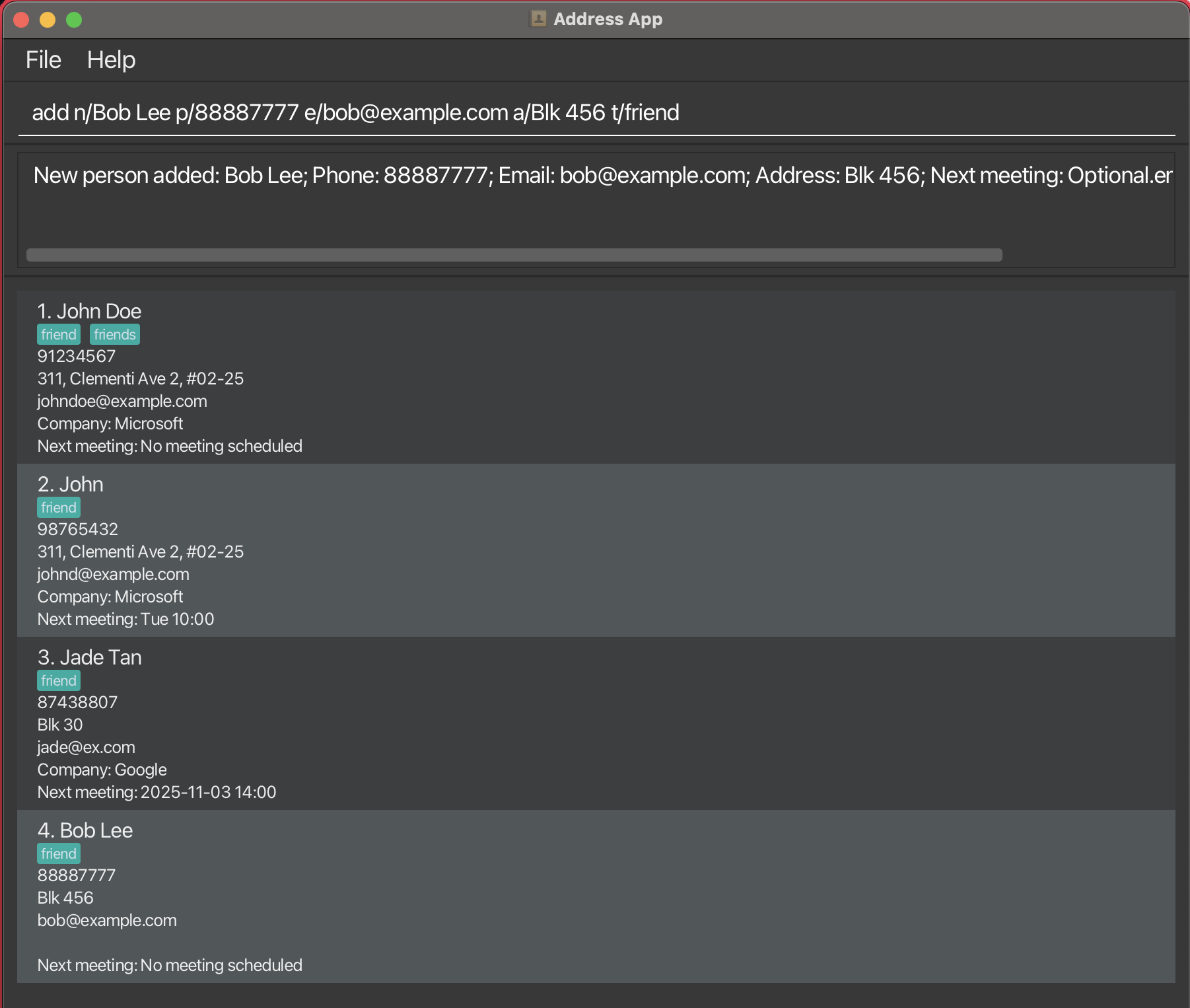
add n/John Doe p/98765432 e/johnd@example.com a/John street, block 123, #01-01- Adds John Doe with only required fieldsadd n/Alice Wong p/91234567 e/alice@tech.com a/21 Computing Dr c/Google m/Sprint planning on Thu 3pm t/client t/vip- Adds Alice with company, meeting, and tagsadd n/Bob Lee p/88887777 e/bob@example.com a/Blk 456 t/friend- Adds Bob with a tag but no company or meeting
Listing all persons : list
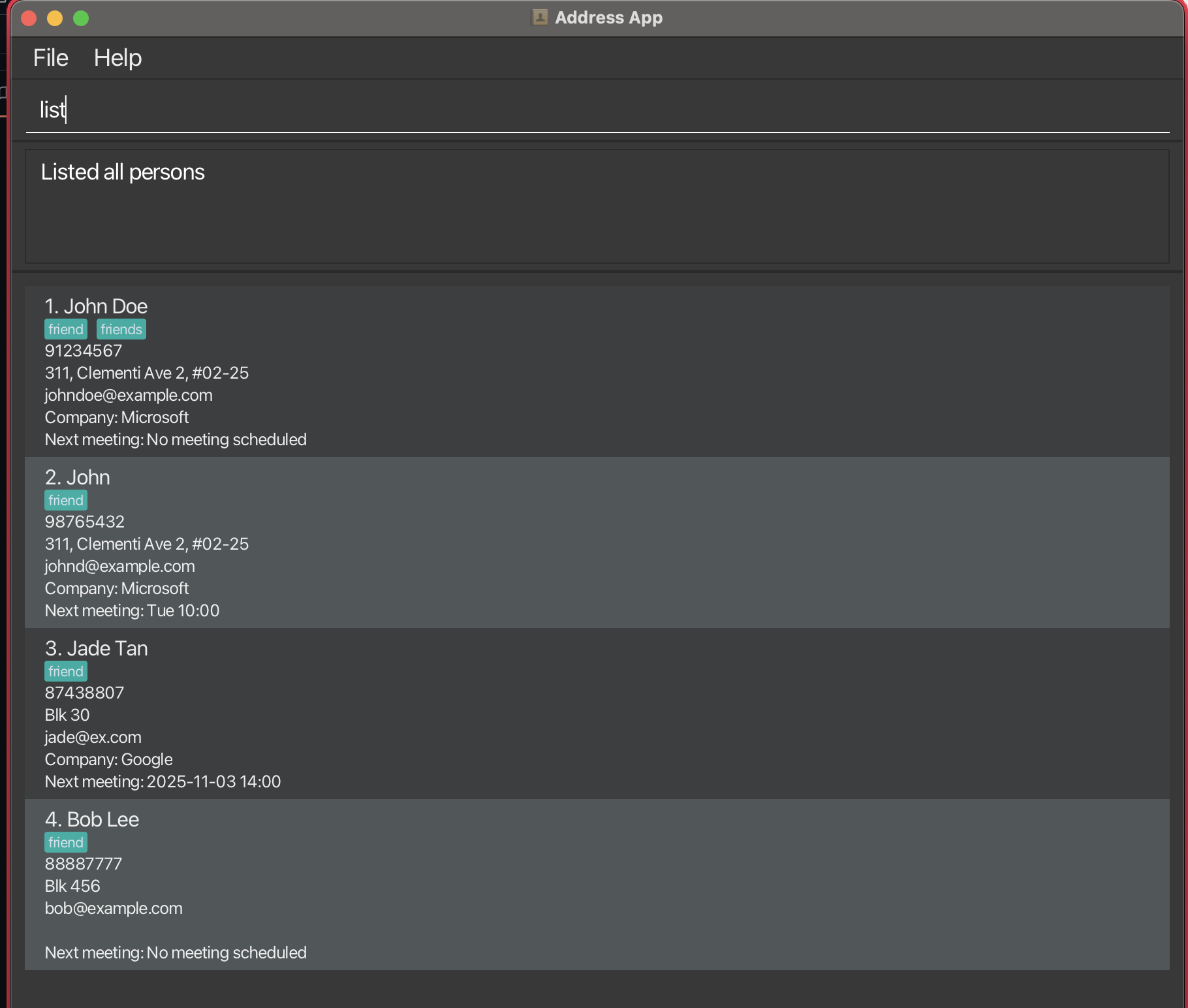
Shows a list of all persons in the address book.
Format: list
Editing a person: edit
Edits an existing person in the address book.
Format: edit INDEX [n/NAME] [p/PHONE] [e/EMAIL] [a/ADDRESS] [c/COMPANY] [m/NEXT_MEETING] [t/TAG]…
Parameters:
INDEX- The index number shown in the displayed person list (must be a positive integer: 1, 2, 3, …)- At least one optional field must be provided
- All fields are optional but you must specify at least one to edit
Behavior:
- Existing values will be updated to the input values
- When editing tags, ALL existing tags are replaced (not cumulative)
- To clear a field, provide the prefix without a value (e.g.,
c/clears company,t/clears all tags)
Tips:
- Use
listorfindfirst to see the index numbers - To add a tag, it must exist in the registry. Use
addtag t/TAGfirst if needed - You can edit multiple fields in one command
- Company can be cleared by using
c/with no value
Examples:
edit 1 p/91234567 e/johndoe@example.com- Edits phone and email of the 1st personedit 2 c/Microsoft m/Quarterly review next Wed- Updates company and meeting for 2nd personedit 3 n/Betsy Crower t/- Changes name and clears all tagsedit 1 t/client t/vip- Replaces all existing tags with "client" and "vip"
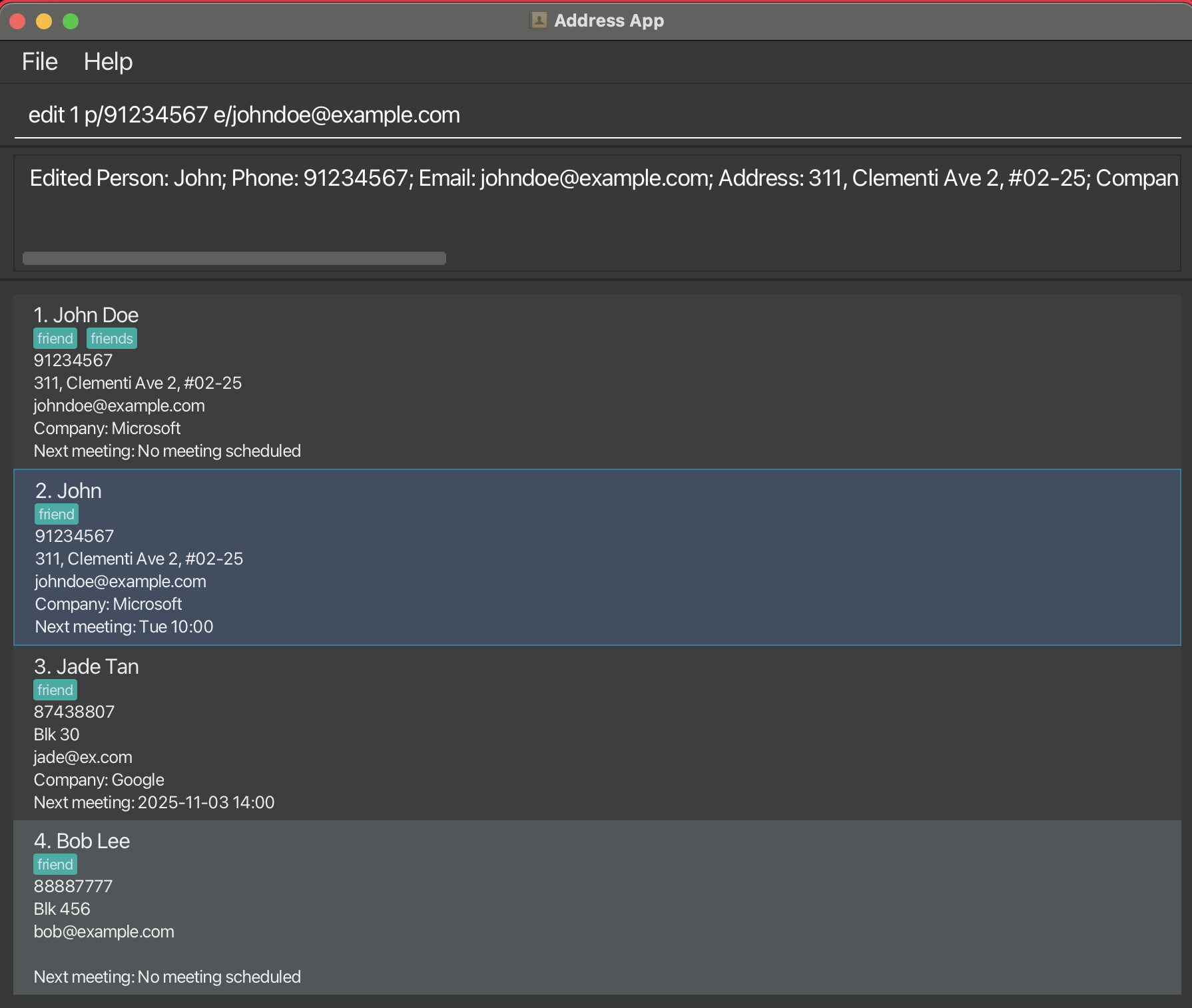
Locating persons: find
Finds persons by name keywords, tags, and/or company. You can use any combination of these criteria.
Format: find [KEYWORD [MORE_KEYWORDS]...] [t/TAG [t/TAG]...] [c/COMPANY [c/COMPANY]...]
Logic at a glance
- name: OR across keywords (e.g.,
find alice bobmatches either).- t/ (tags): AND across multiple tags (must have all).
- c/ (company): OR across multiple companies.
- Mixing dimensions (name/tag/company): combined with AND.
Examples
find alice t/friend t/teammate→ name contains alice AND has both tags.find c/Google c/Meta t/lead→ company is (Google OR Meta) AND has tag lead.
Name Search
- Case-insensitive substring match (e.g.,
hanmatchesHans) - Multiple keywords use OR logic (e.g.,
Hans Bo→ matchesHansorBo)
Tag Search
- Exact, case-insensitive match
- Multiple
t/values use AND logic (e.g.,t/client t/vip→ contacts that have bothclientandvip) - Allowed-tag check: If any tag is not in the registry, no search is performed and a warning is shown
Company Search
- Case-insensitive substring match
- Multiple
c/values use OR logic (e.g.,c/Google c/Microsoft→ at Google or Microsoft)
Mixed Criteria
- When combining name / tags / company, the groups are combined with AND (all must match)
- Example:
find alice t/client c/Google→ contacts named “alice” and taggedclientand whose company contains “Google”
Examples
find John→ matchesjohn,John Doefind alex david→ matchesAlex Yeoh,David Lifind t/client→ all contacts taggedclientfind t/client t/vip→ contacts with bothclientandvipfind c/Google→ all at Googlefind c/Google c/Microsoft→ at Google or Microsoftfind alice t/priority c/Microsoft→ “alice” andpriorityand “Microsoft”
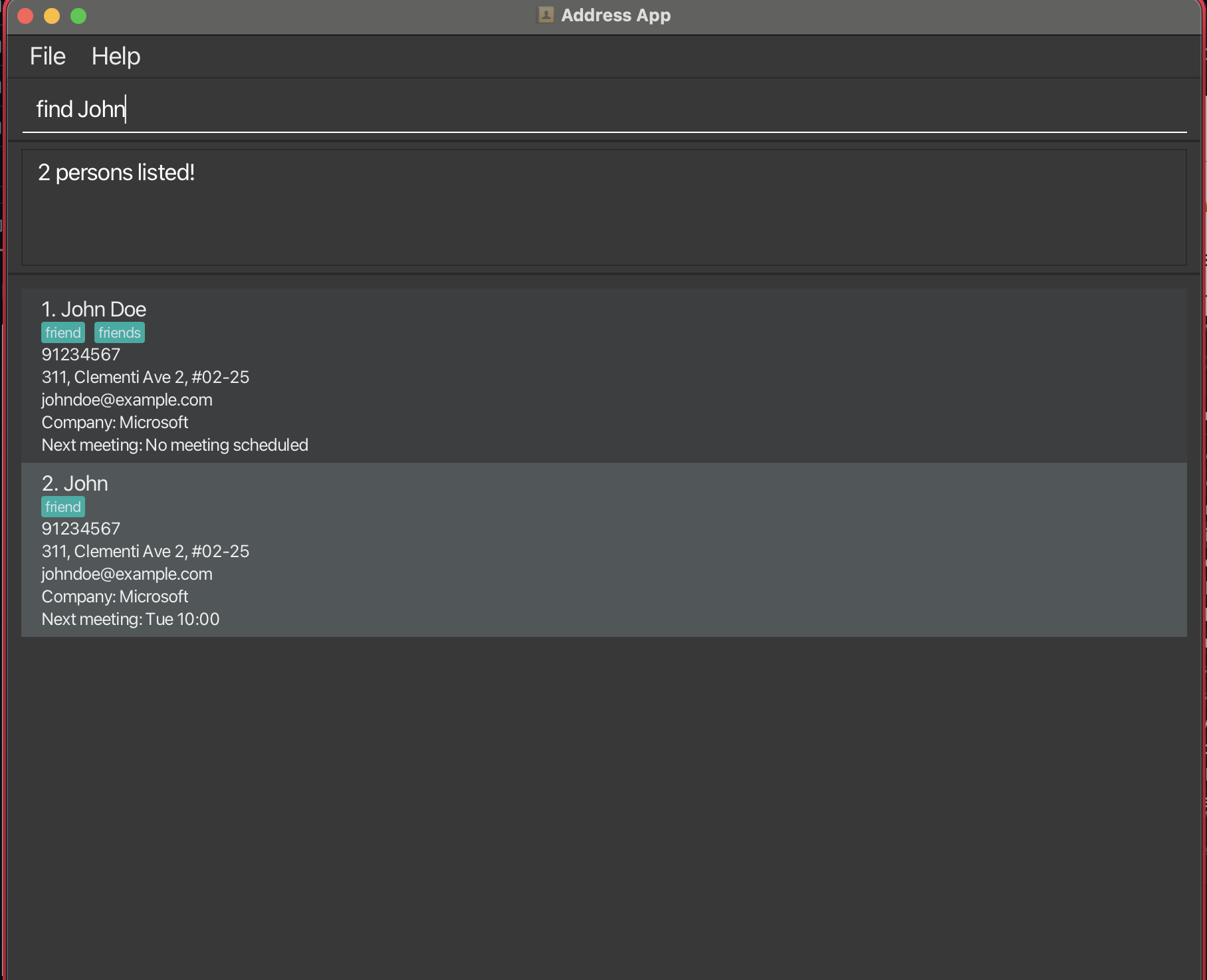
Deleting a person : delete
Deletes the specified person from the address book.
Format: delete INDEX
- Deletes the person at the specified
INDEX. - The index refers to the index number shown in the displayed person list.
- The index must be a positive integer 1, 2, 3, …
Examples:
listfollowed bydelete 2deletes the 2nd person in the address book.find Betsyfollowed bydelete 1deletes the 1st person in the results of thefindcommand.
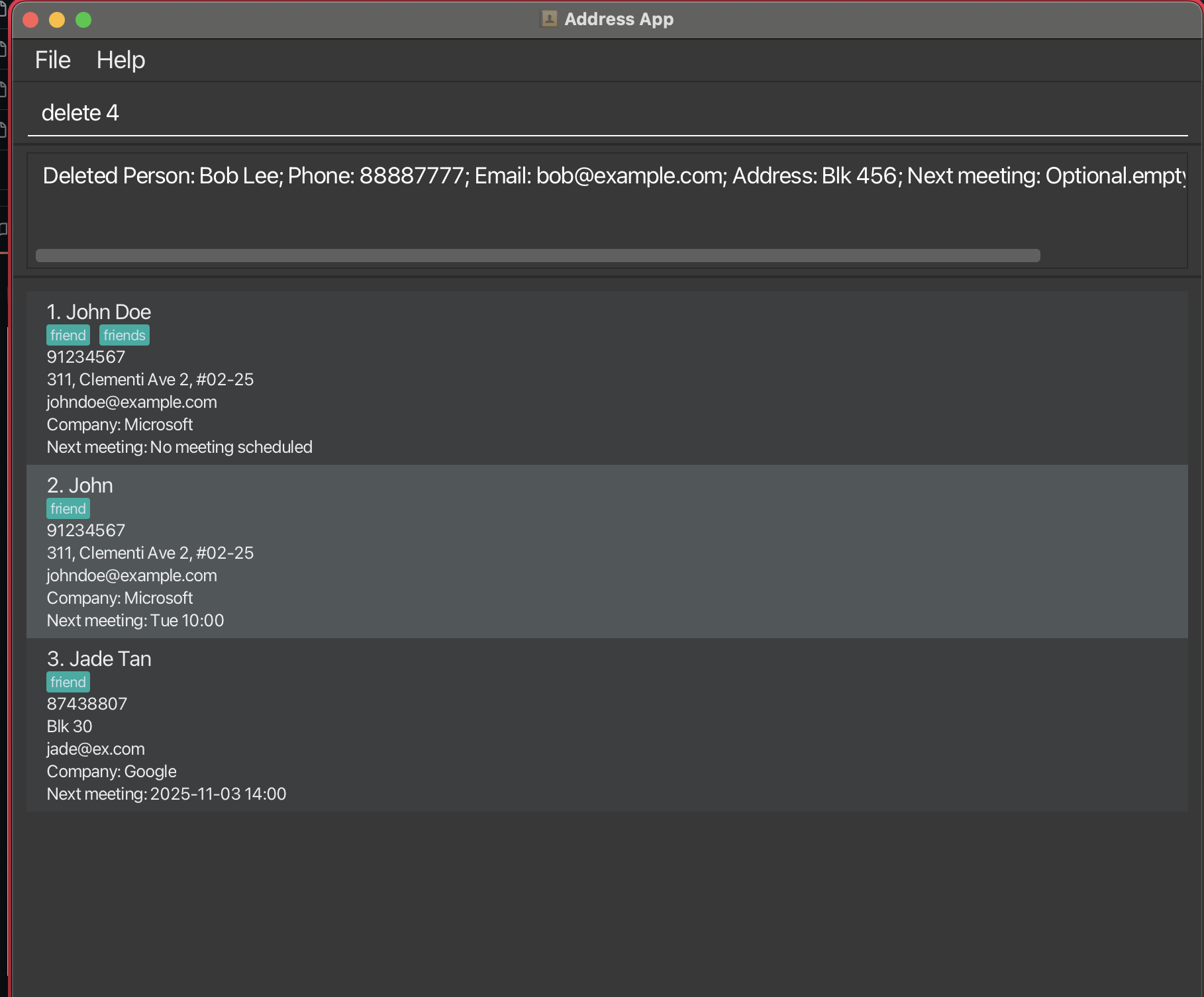
Clearing all entries : clear
Clears all entries from the address book.
Format: clear
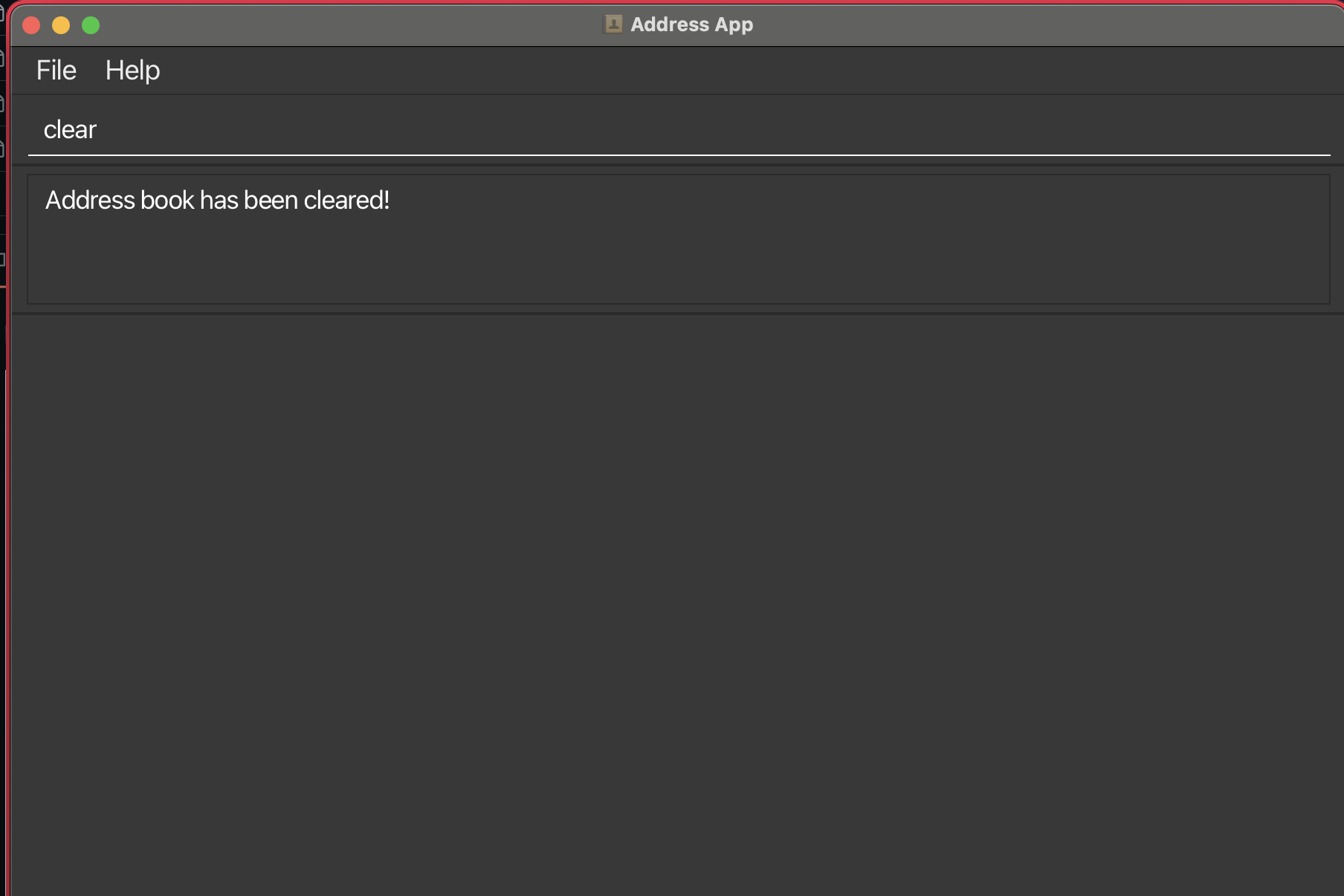
Exiting the program : exit
Exits the program.
Format: exit
Saving the data
MeetCLI data are saved in the hard disk automatically after any command that changes the data. There is no need to save manually.
Editing the data file
MeetCLI data are saved automatically as a JSON file [JAR file location]/data/addressbook.json. Advanced users are welcome to update data directly by editing that data file.
Caution:
If your changes to the data file makes its format invalid, MeetCLI will discard all data and start with an empty data file at the next run. Hence, it is recommended to take a backup of the file before editing it.
Furthermore, certain edits can cause MeetCLI to behave in unexpected ways (e.g., if a value entered is outside the acceptable range). Therefore, edit the data file only if you are confident that you can update it correctly.
Future Work
Deferred meeting enhancements
During v1.4 we experimented with full-fledged meeting management (commands such as mark, history, and addmeeting). Internal QA revealed that the hybrid implementation was unstable, so we removed those commands for v1.5. The current release intentionally focuses on a single free-form m/ field per contact.
We still plan to explore structured meetings (tracking completion, notes, and history) after the v1.5 release, but only when we can guarantee a stable experience. Until then, keep using the optional m/ prefix to jot down your next follow-up, and edit it whenever plans change.
FAQ
Q: How do I transfer my data to another Computer?
A: Install the app in the other computer and overwrite the empty data file it creates with the file that contains the data of your previous MeetCLI home folder.
Q: Can I add custom tags?
A: Yes! Use the addtag t/TAGNAME command to add new tags to the allowed tag list. Once added, you can use them in add and edit commands.
Q: How do I see all the tags I've created?
A: Use the listtag command to view the allowed tag list in alphabetical order.
Q: Can I search for multiple companies at once?
A: Yes! Use find c/COMPANY1 c/COMPANY2 to find contacts at either company (OR logic).
Q: Why does find use AND for tags but OR for name/company?
A: Tags act as precise filters, so MeetCLI requires every requested tag to match. Name and company keywords are treated as discovery aids, so matching any keyword keeps the search broad. When you combine them, the dimensions are applied together (AND) to narrow the list to relevant contacts.
Q: What happens when a meeting is done?
A: MeetCLI currently stores only one "Next meeting" note. After you meet the contact, use edit INDEX m/No meeting scheduled (or provide a new follow-up) to keep the reminder accurate.
Q: Can I have multiple meetings for one contact?
A: Not yet. Advanced meeting management commands were deferred to keep v1.5 stable. For now, keep a single concise reminder in the m/ field.
Q: Why can't I use certain tags?
A: MeetCLI uses a tag registry to ensure consistency. Only tags in the allowed list can be used. Use addtag to add new tags, or check existing tags with listtag.
Known issues
- When using multiple screens, if you move the application to a secondary screen, and later switch to using only the primary screen, the GUI will open off-screen. The remedy is to delete the
preferences.jsonfile created by the application before running the application again. - If you minimize the Help Window and then run the
helpcommand (or use theHelpmenu, or the keyboard shortcutF1) again, the original Help Window will remain minimized, and no new Help Window will appear. The remedy is to manually restore the minimized Help Window.
Command summary
Tag-related commands
| Action | Format, Examples |
|---|---|
| AddTag | addtag t/TAGe.g., addtag t/vip |
| ListTag | listtag |
Person-related commands
| Action | Format, Examples |
|---|---|
| Add | add n/NAME p/PHONE_NUMBER e/EMAIL a/ADDRESS [c/COMPANY] [m/NEXT_MEETING] [t/TAG]… e.g., add n/James Ho p/22224444 e/jamesho@example.com a/123, Clementi Rd, 1234665 c/Acme Corp m/Catch up next Tue t/client |
| Edit | edit INDEX [n/NAME] [p/PHONE_NUMBER] [e/EMAIL] [a/ADDRESS] [c/COMPANY] [m/NEXT_MEETING] [t/TAG]…e.g., edit 2 c/Microsoft m/Client call on Friday |
| Delete | delete INDEXe.g., delete 3 |
| Find | find [KEYWORD]... [t/TAG]... [c/COMPANY]...e.g., find alice t/client c/Google |
| List | list |
System commands
| Action | Format, Examples |
|---|---|
| Help | help |
| Clear | clear |
| Exit | exit |